Right-click. Add to Serato. Done.
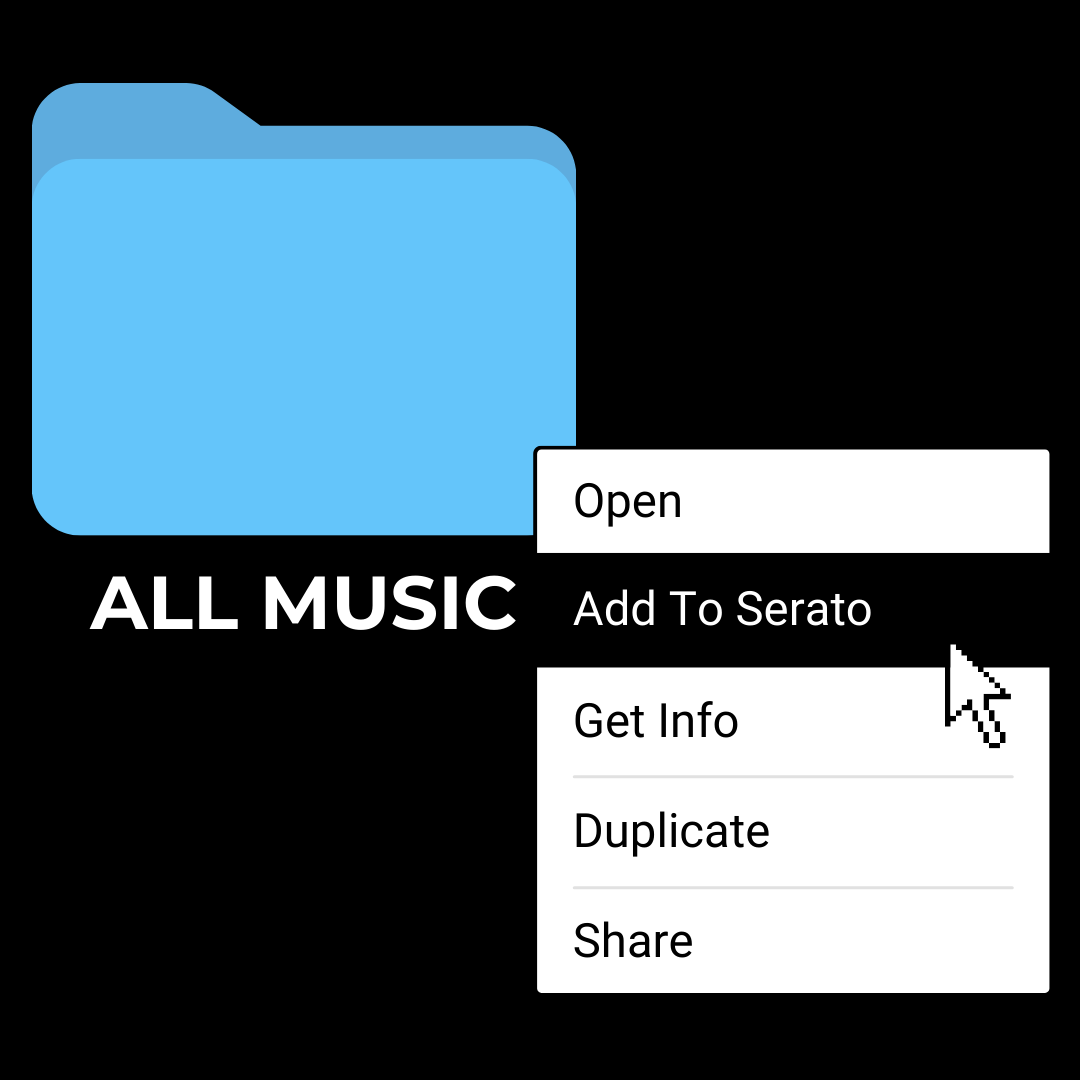
Right-click in Finder (Mac) or File Explorer (Windows) to add files to your Serato Library. MLT moves them into your main music folder and creates a dated crate—ready when you open Serato.
Where should I send the free download?
No spam. Unsubscribe anytime.
Check your email for the download link
Step 1: Check your inbox (and spam)
Step 2: Download and install MLT
Step 3: Right-click music files → Add to Serato
Or download now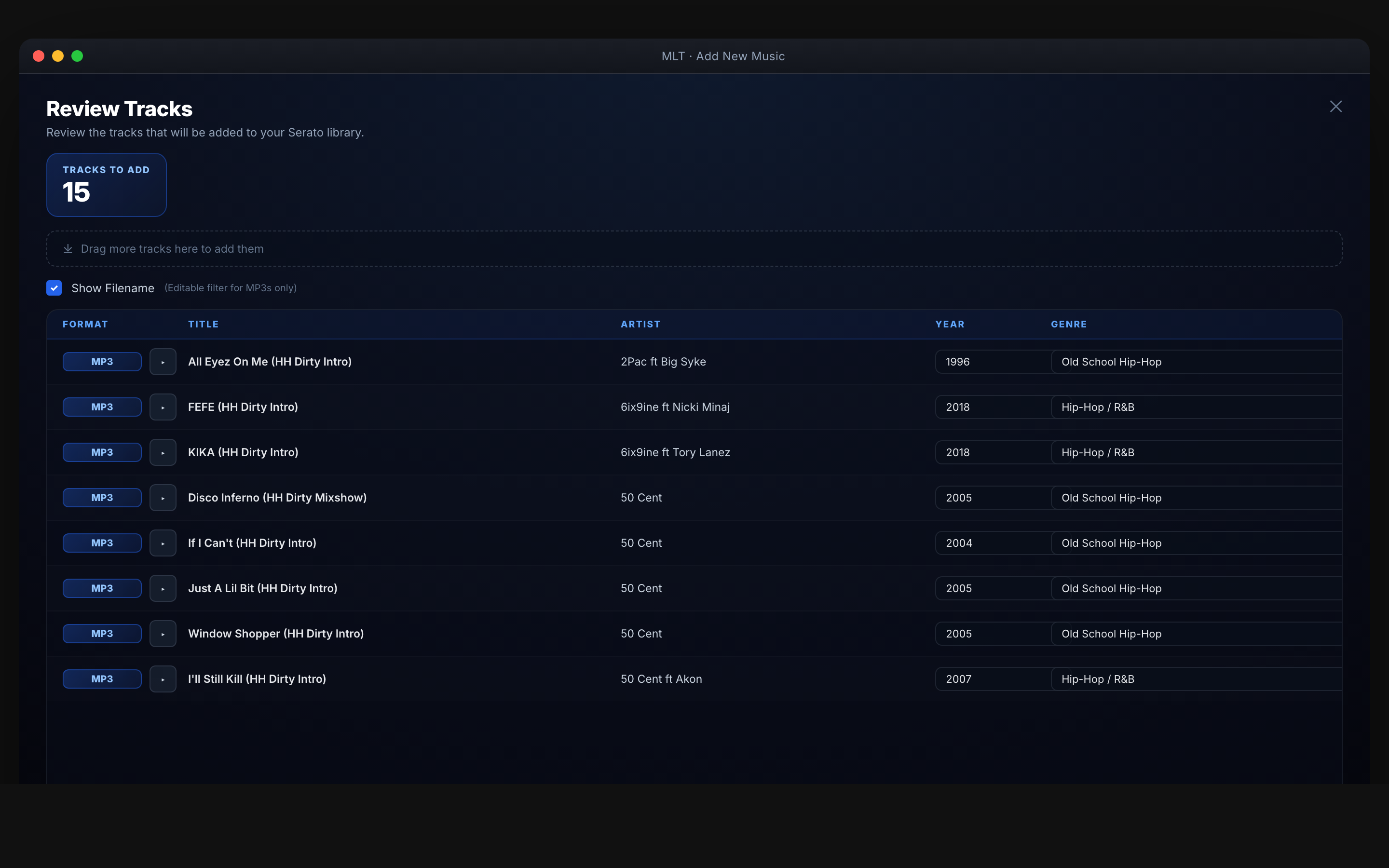
Add new music into Serato
Right-click in Finder (Mac) or File Explorer (Windows)
The fastest way. Right-click music files and add directly into Serato. Music is moved to your main music folder (set in MLT) and a crate with today's date is created—ready when you open Serato. No dragging, no opening the app first.
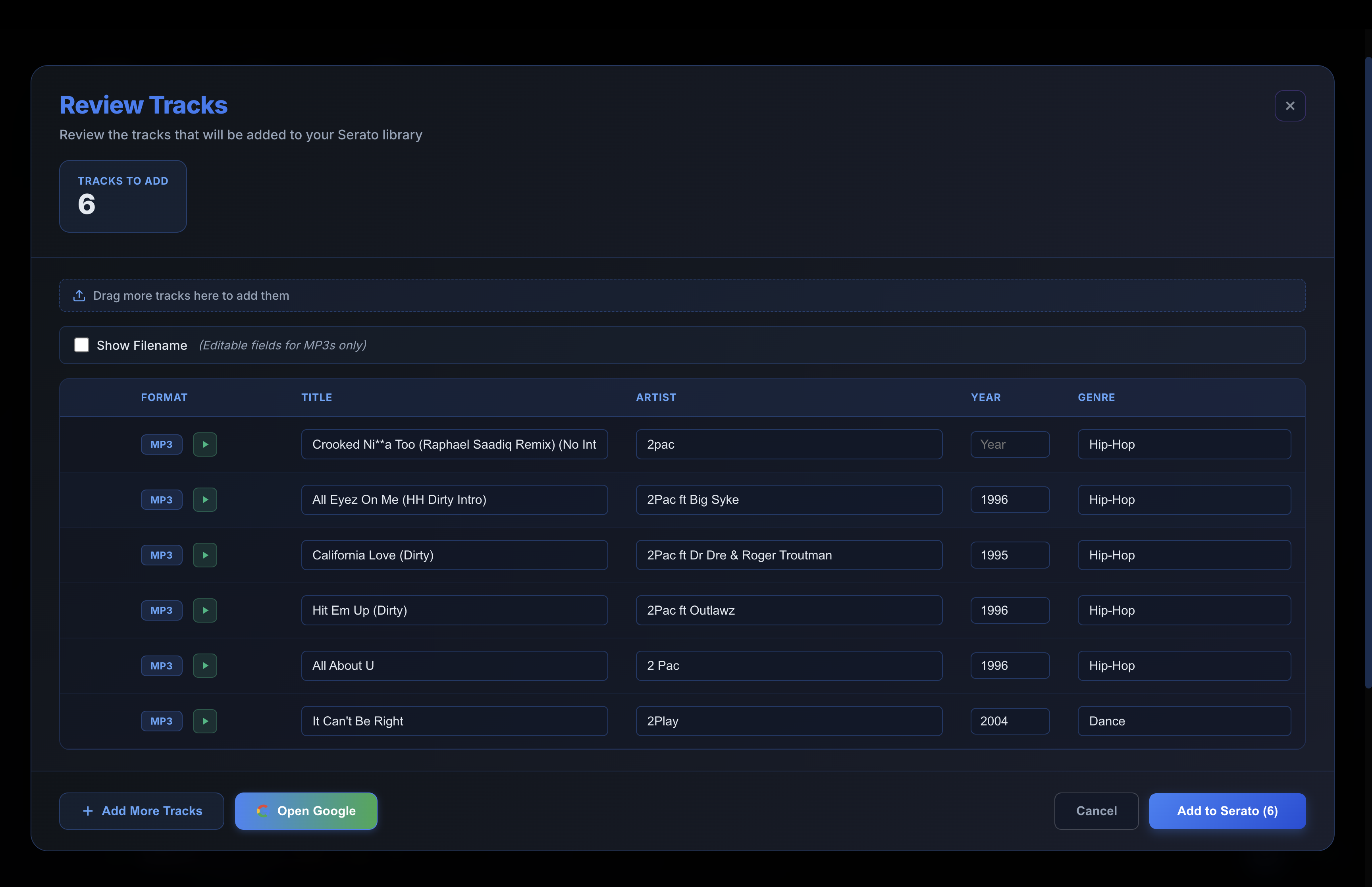
Add New Tracks
Add files or folders from inside MLT. Tracks go into your main music folder and into a dated crate automatically.
How it works
- Set your main music folder in MLT—all new music goes there
- Right-click in Finder (Mac) or File Explorer (Windows) and choose Add to Serato
- Music is moved to your folder and a crate with today's date is created—open Serato and it's ready
★★★★★
“Love the new way to add music to Serato library and main music folder.”
— Dre
…
…
Available for Mac & Windows