Skip to content
Version 2.0 · Public Beta

Every tool in MLT 2.0, and what it actually does.

Music Library Tools is a suite of apps that helps Serato DJs organise, clean and back up their music library — automatically, and fast. Here's the full tour: fourteen apps, what each one fixes, and how it works.

Public beta · Free · macOS & Windows · Works with Serato 3 & 4 · Your existing licence carries over.

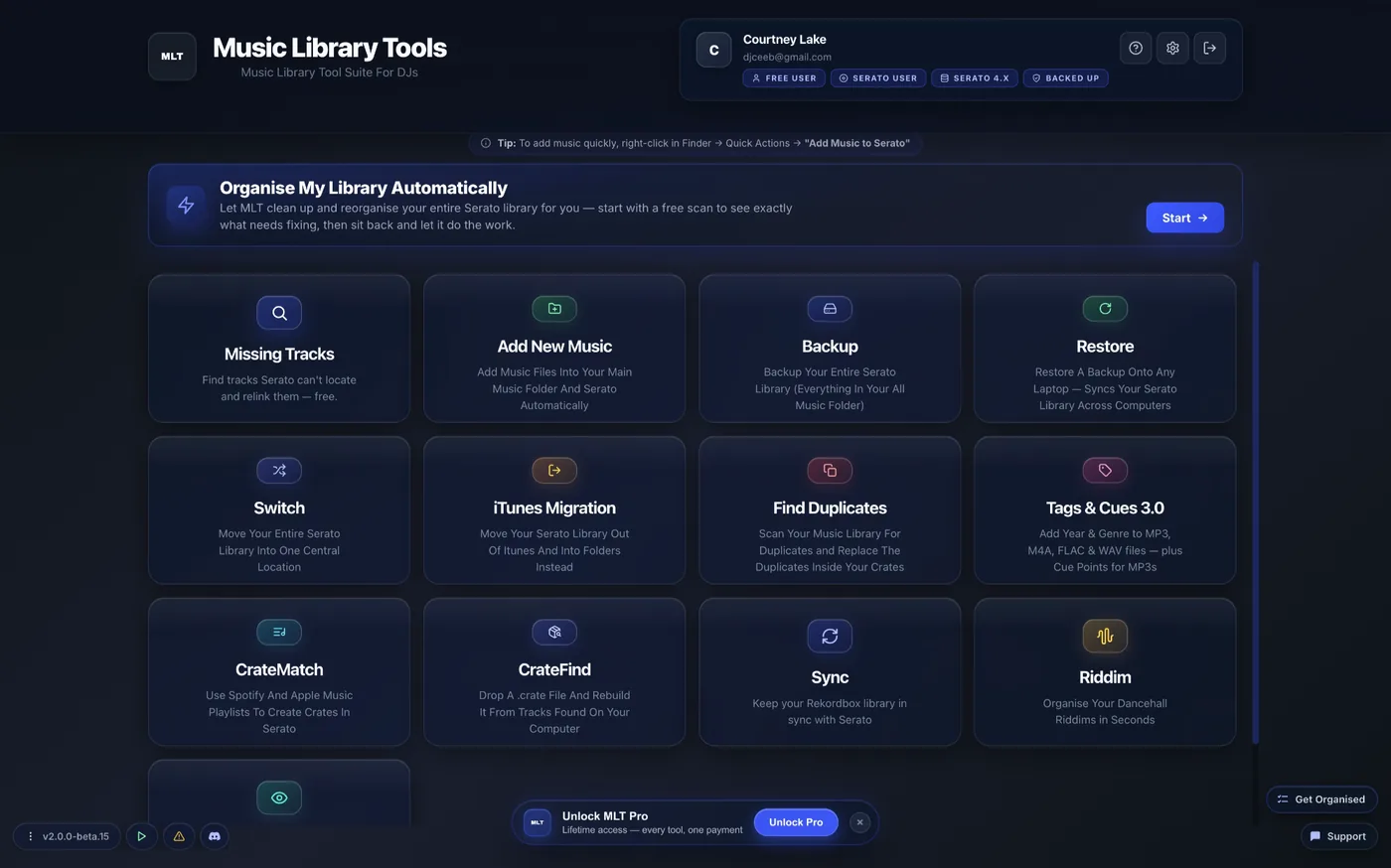
The MLT 2.0 home screen — every app on one dashboard, with Serato 4 detected and the Organise My Library banner across the top.
The 2.0 home screen — every tool in one place, with your Serato library detected automatically.

What MLT is

Your library is the most valuable thing you own as a DJ.

Years of digging, buying, tagging and setting cues. But it lives inside Serato, and Serato is fragile — move a file the wrong way and things break. Leave it long enough and it turns into a mess of duplicates, missing tracks and half-tagged tunes. And most DJs have no proper backup at all.

MLT is the toolkit that finally lets you take control of it. Every app does one job, and does it properly — and they all work the same way: they show you what's about to happen before they touch anything, they keep your crates and cue points safe, and they let you fix in minutes what would take days by hand.

You don't have to do it all at once. Pick the problem that's bugging you most right now, start there, and build from it.

Getting started

Set up once, then you're in.

Three quick steps the first time you open MLT. After that you land straight on the dashboard.

Create your account

Download MLT and you'll land on the sign-in page. No account yet? Making one only takes a moment.

Pick your Serato library

Choose the library on your laptop, or the one on your external drive. MLT finds them for you.

Set your main music folder

The one folder your music lives in. MLT uses it to know where to organise your tracks as your library grows.

The apps

Fourteen tools. Each does a job, and does it properly.

Every app shows you what it found before it changes anything — and keeps your crates and cue points intact. Start with whichever problem is bugging you most.

01

Missing Tracks

Free

The problem. You open Serato and some tracks are orange and won't load. The music isn't gone — the file moved or got renamed, and Serato lost track of where it went. That's all an orange track is: a broken link.

Missing Tracks scans your library and tells you straight away how many you've got. Choose "Find my files and fix them" and it searches your drives — starting with the smart option already picked for you. It shows you every match first; nothing changes until you say go. Hit apply and it relinks everything, crates and cue points exactly as they were. Tracks gone for good? It gathers them into one crate so you can clear them out yourself.
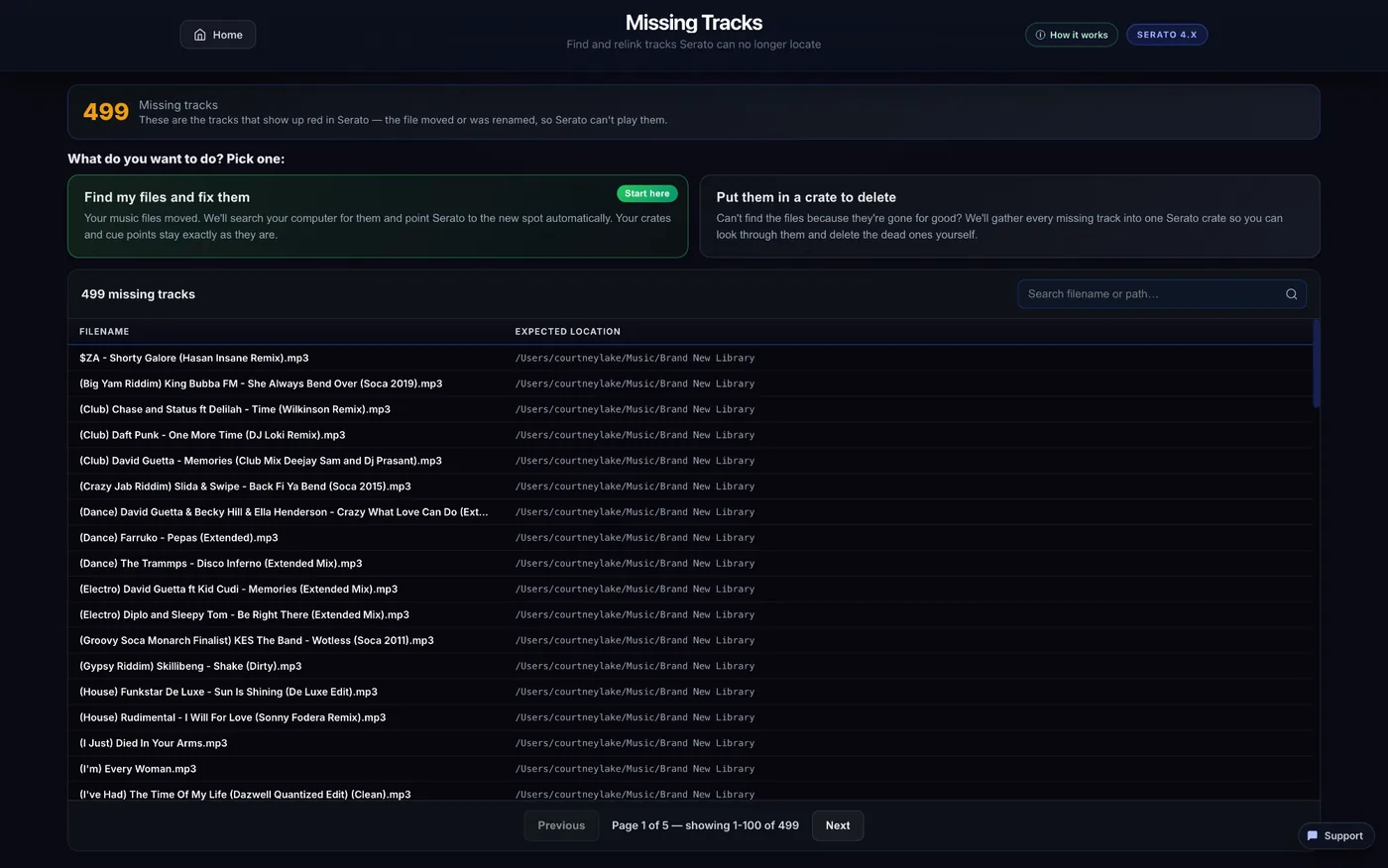
MLT Missing Tracks showing 499 missing tracks and two options: find my files and fix them, or put them in a crate to delete.
02

Add New Music

Free

The problem. You buy or download a batch of tracks, they land in Downloads, and they just sit there. Untagged, unsorted, not in Serato. That pile is exactly how libraries turn into a mess in the first place.

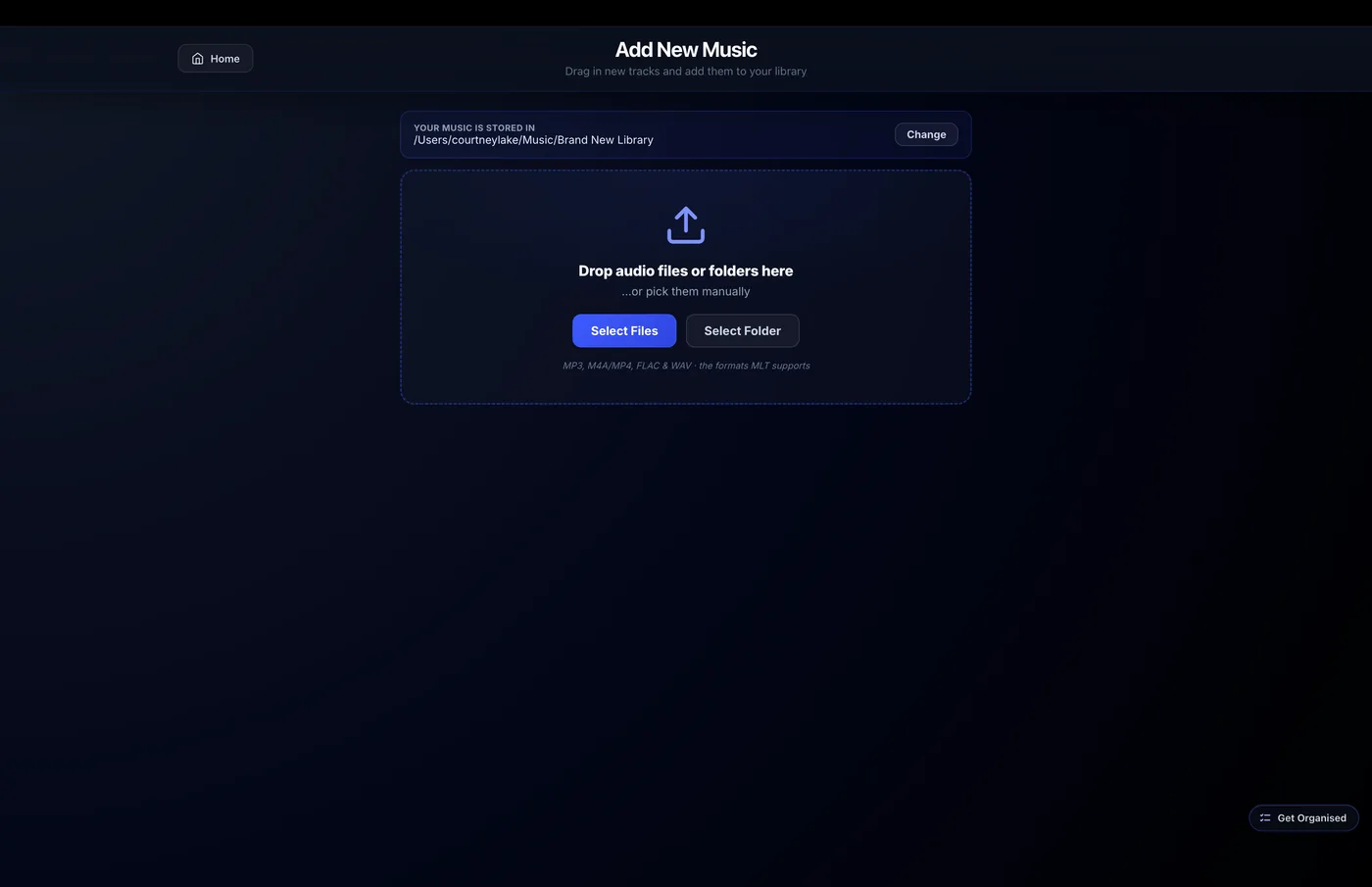
Drag your new tracks into the drop zone — MP3, M4A, FLAC or WAV. MLT reads the tags and shows you a review screen with every track's title, artist, year and genre, flagging any duplicates so you don't add the same tune twice. Fix anything that's wrong, then hit Add to library: it copies the files into your main music folder, organises them, adds them to Serato, and drops them into a new crate so you can find them straight away.

MLT Add New Music drop zone — drag audio files or folders in, or pick them manually.
03

Backup

Pro

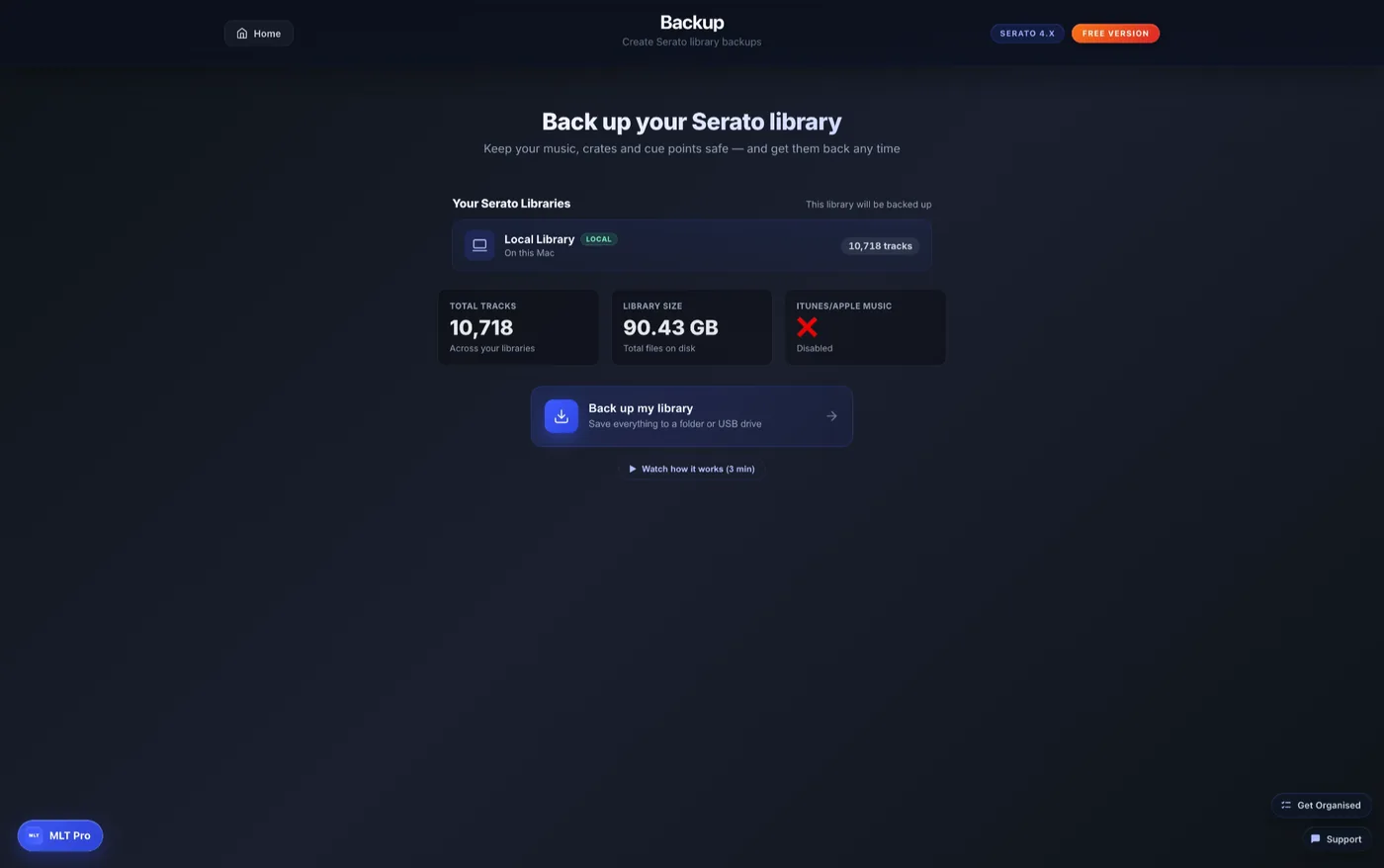
The problem. Your Serato library isn't just music files. It's every crate you've built, every cue point you've set, every beatgrid — years of work, all on one laptop. Copying your music folder somewhere doesn't save any of that.

MLT reads your library and shows you what you've got — total tracks, size, and where it all lives. Then pick what to back up: your whole Serato library (back up to the same spot again and it only adds what's new or changed, so it's quick), a plug-and-play USB you can plug into any Serato laptop, or a single crate. You get a plain-English summary of exactly what's about to happen before it runs.

MLT Backup showing the Serato library summary — 10,718 tracks, 90.43 GB — ready to back up.
04

Restore

Free

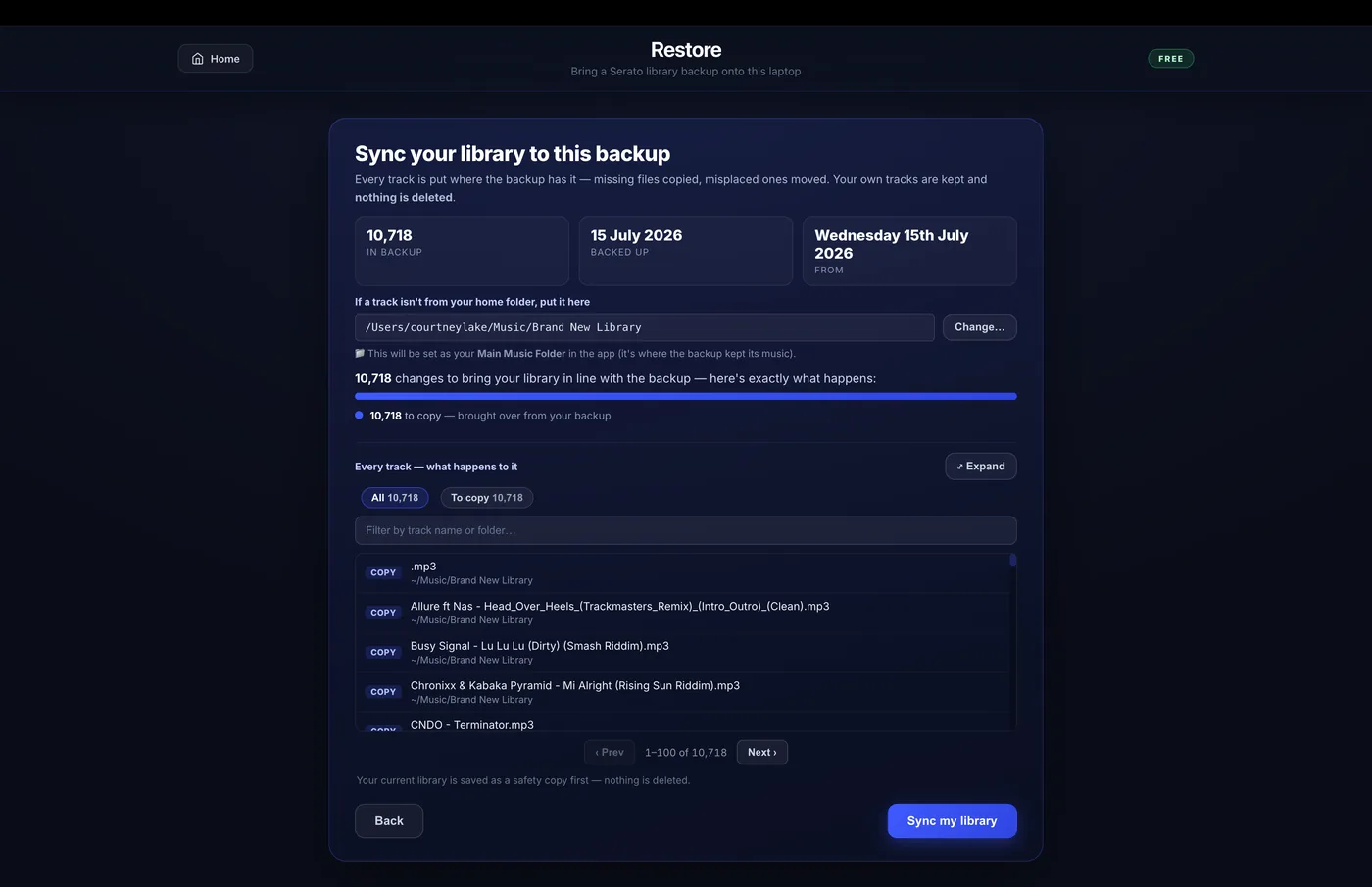
The problem. The worst happened. New laptop, or you wiped the old one. You've got your MLT backup on a drive — now you need the whole library back, exactly how it was.

Plug the drive in and choose your backup folder. Here's the clever part: if that backup came from a different laptop, MLT detects it and relinks every file path so your library works on this machine — no orange tracks, no broken crates. You get a full plan first: how many tracks, when it was made, and exactly what happens to every file. Nothing gets deleted, and it saves a safety copy of your current library before it starts.

MLT Restore showing the sync plan — 10,718 tracks in the backup, dated, with a breakdown of what happens to every file.
05

Switch

Pro

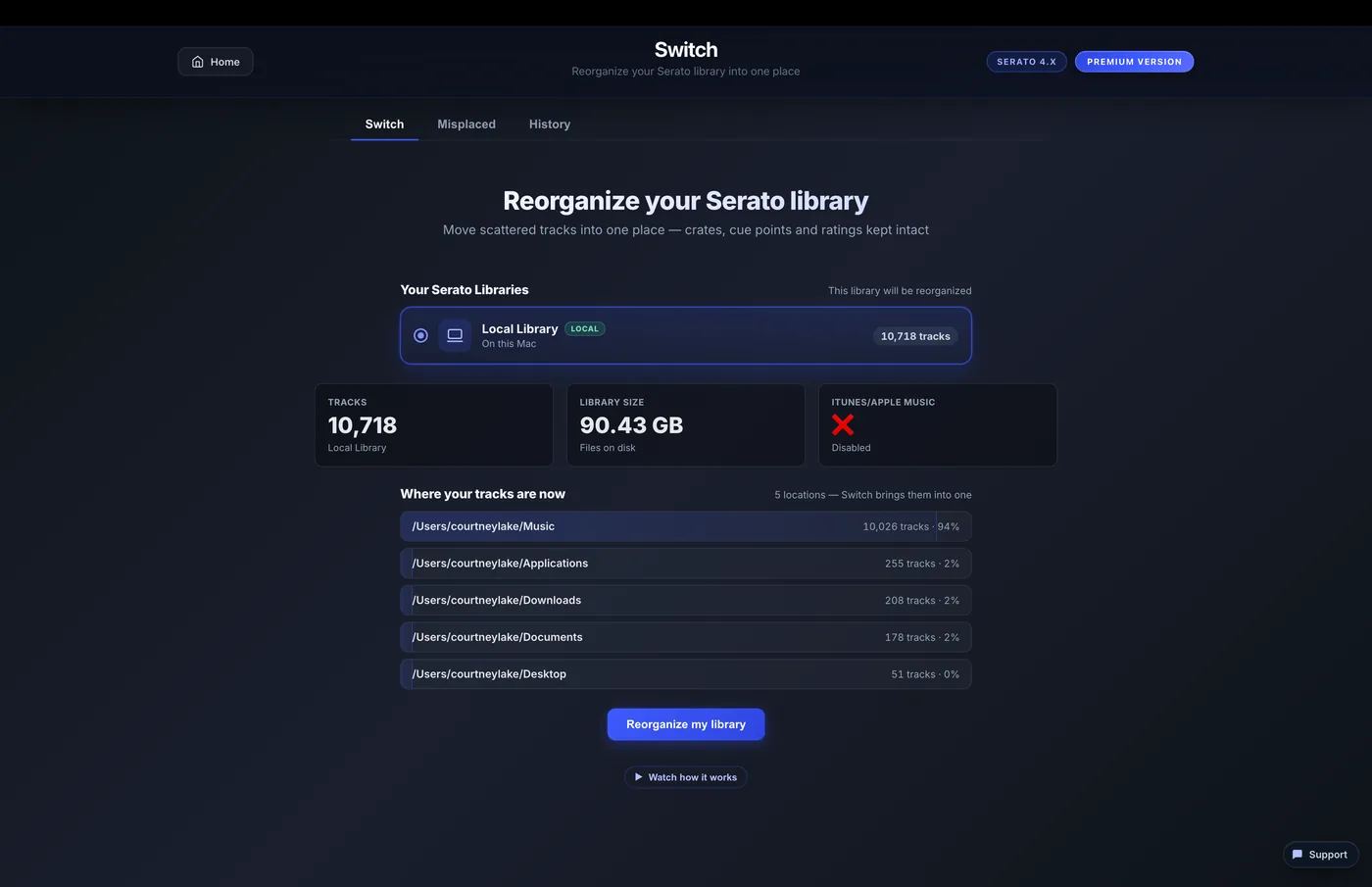
The problem. Years of downloading leaves your tracks scattered everywhere — Downloads, random dated folders, different drives. You'd love it all in one tidy place. But move files in Finder and Serato breaks: crates go empty, cue points vanish. So you never touch it.

Switch shows you how scattered your library actually is, then does it for you safely. Consolidate gathers every track into one central folder; Genre Folders sorts them by style. Choose Copy or Move — and here's the whole point: as it moves your files it rewrites Serato's database at the same time, so your crates, cue points and ratings all stay perfectly intact. Move files and MLT takes a revert snapshot first, with a Revert button if you're not happy.

MLT Switch showing a scattered library across five locations, ready to reorganise into one place.
06

iTunes Migration

Pro

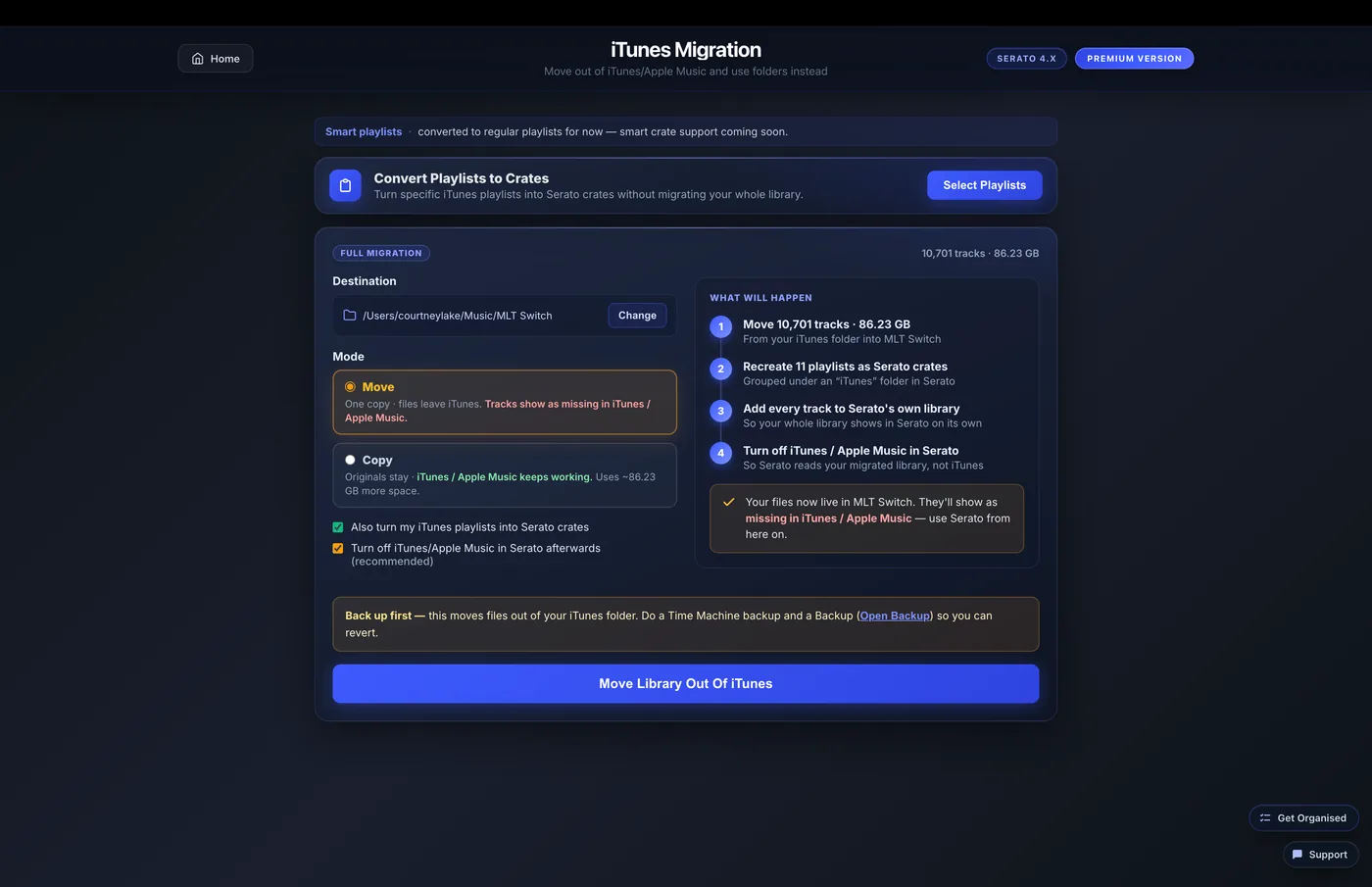
The problem. Loads of DJs have years of music and playlists locked inside iTunes or Apple Music. DJing out of it is fragile, and moving all of it into Serato properly — with the playlists — is a nightmare to do by hand.

MLT reads your iTunes library and playlists, then you pick where your music lives from now on. Choose Move to take tracks out of the iTunes folder completely, or Copy to leave your originals so Apple Music keeps working — the safer option if you're not ready to cut the cord. Tick to turn playlists into Serato crates and switch iTunes off inside Serato. A live "what will happen" list updates as you go, there's a full pre-flight summary before it runs, and a Restore option that puts everything back.

MLT iTunes Migration with destination and Move/Copy options on the left and a live what-will-happen list on the right.
07

Find Duplicates

Free to try

The problem. Over time you end up with the same song several times. You bought it twice, you've got an MP3 and a WAV of it, you re-downloaded it with a slightly different name. You can't spot these by eye, because the filenames don't match.

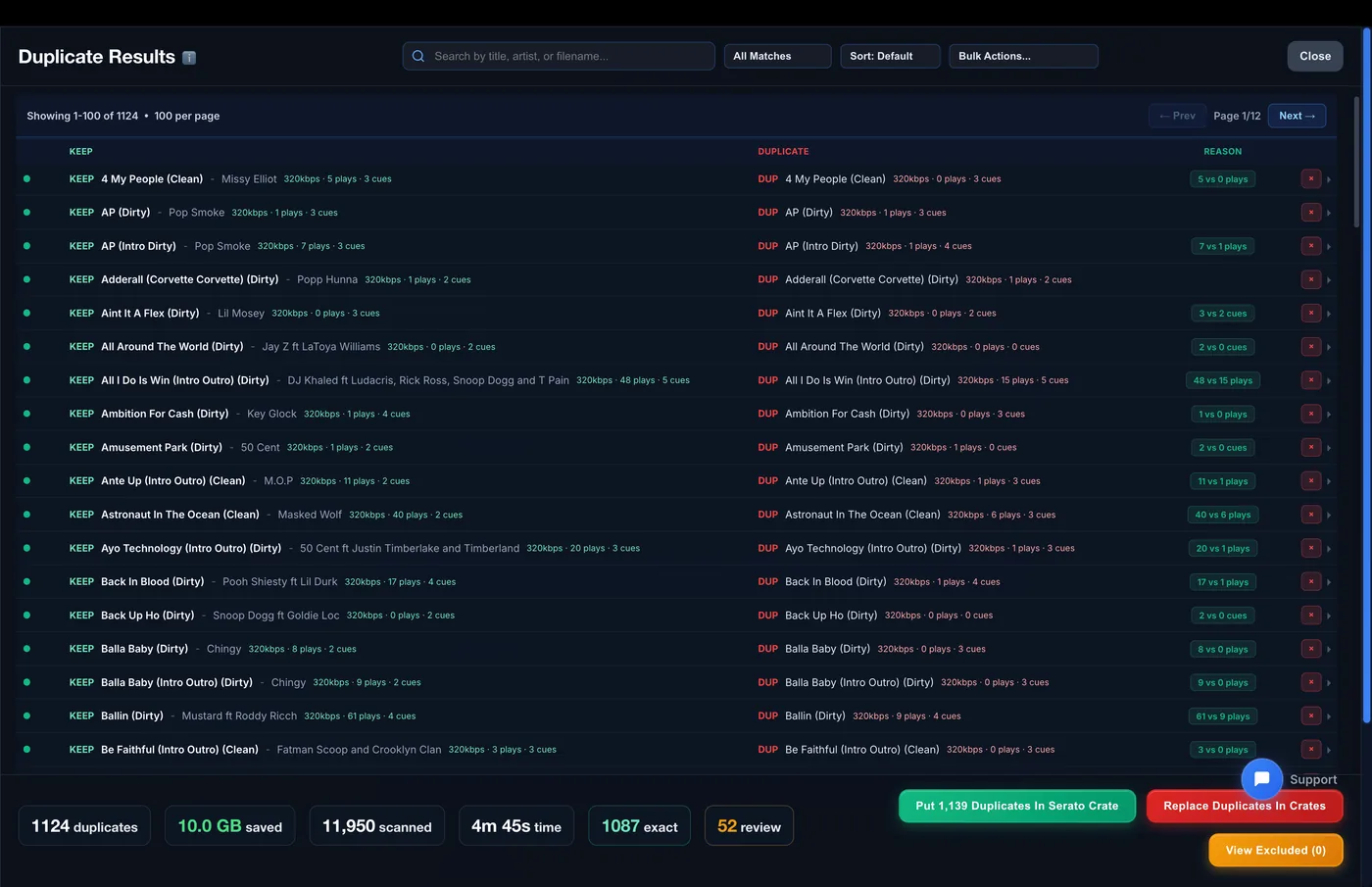
Instead of comparing names, Find Duplicates listens to the actual audio and fingerprints it — so it catches true duplicates even when the format, bitrate or filename is completely different. It's already done the thinking: in each group it picks the best copy to keep based on plays, cue points and bitrate, and you can override any of it. The safe option gathers every duplicate into one crate so nothing's deleted — or replace them across your crates, keeping the best copy with cue points intact.

MLT Duplicate Results — 1,124 duplicates found and 10 GB of space to reclaim, each group showing the copy MLT recommends keeping.
08

Tags & Cues 3.0

Free to try

The problem. Everything in Serato depends on your tags. If your genres are blank, your artists are wrong and your years are missing, you can't search properly, you can't build smart crates, and you can't find anything fast.

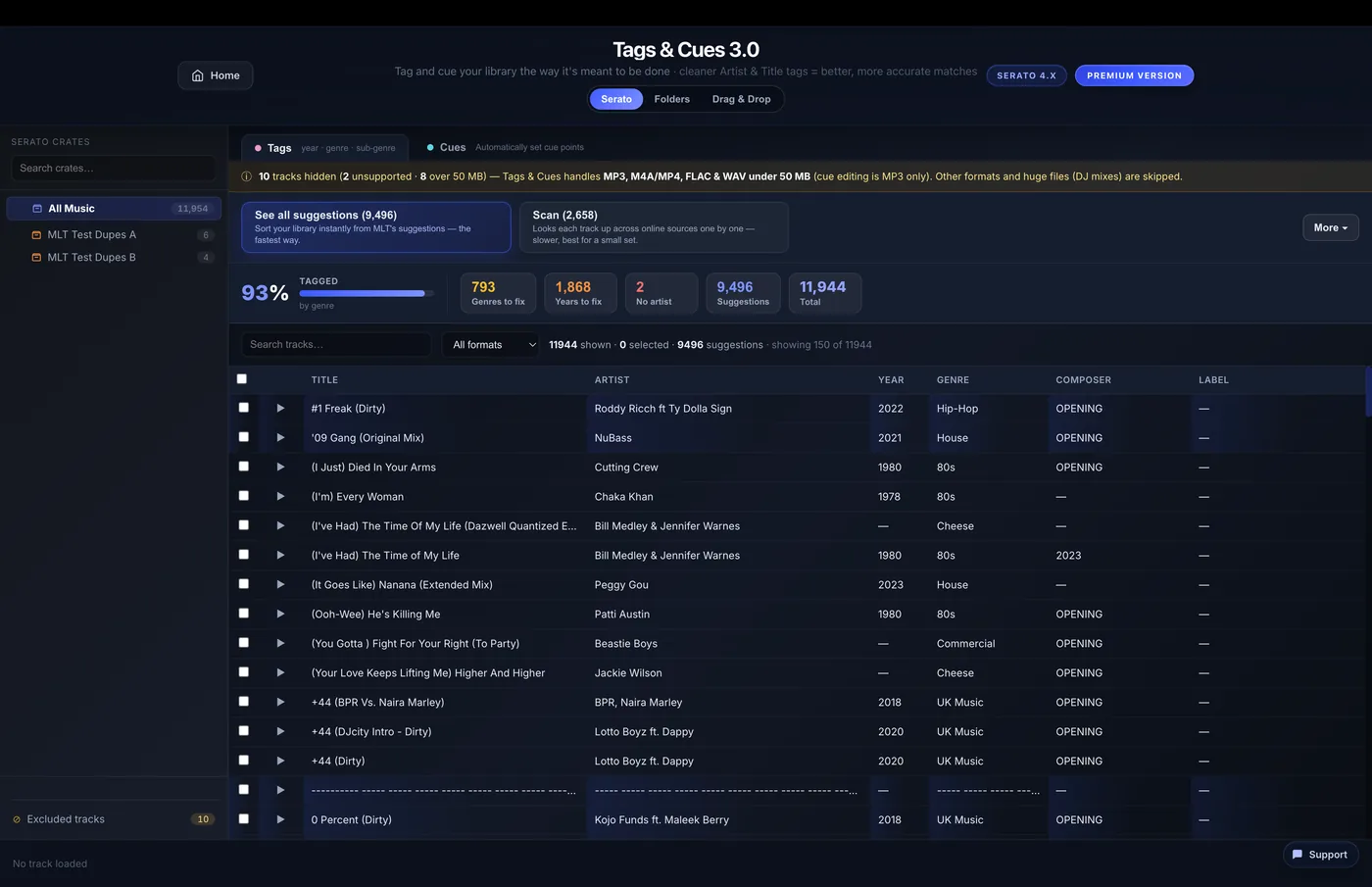
Load your tracks from Serato, a folder, or drag them straight in. "See all suggestions" instantly proposes genres and years across your whole library and you apply them with a click; "Scan" looks each track up across online sources one by one — slower, but great for a small batch you really want to get right. Audio Recognition is the Shazam-style option: if a track has no info at all, MLT identifies it by its actual sound. Nothing gets written until you review it. Then the Cues tab sets one cue style across a whole crate in one go, instead of you doing every track by hand.

Close Serato before you apply cues, so nothing clashes while MLT writes.

MLT Tags & Cues 3.0 showing a library at 93% tagged, with See all suggestions and Scan options above the track table.
09

CrateMatch

Free to try

The problem. A client sends you a playlist for their wedding or their party — a Spotify link, an Apple Music link, or just a list of track names in a message. Normally you'd sit there building that crate one song at a time, hunting through your library for each track you own.

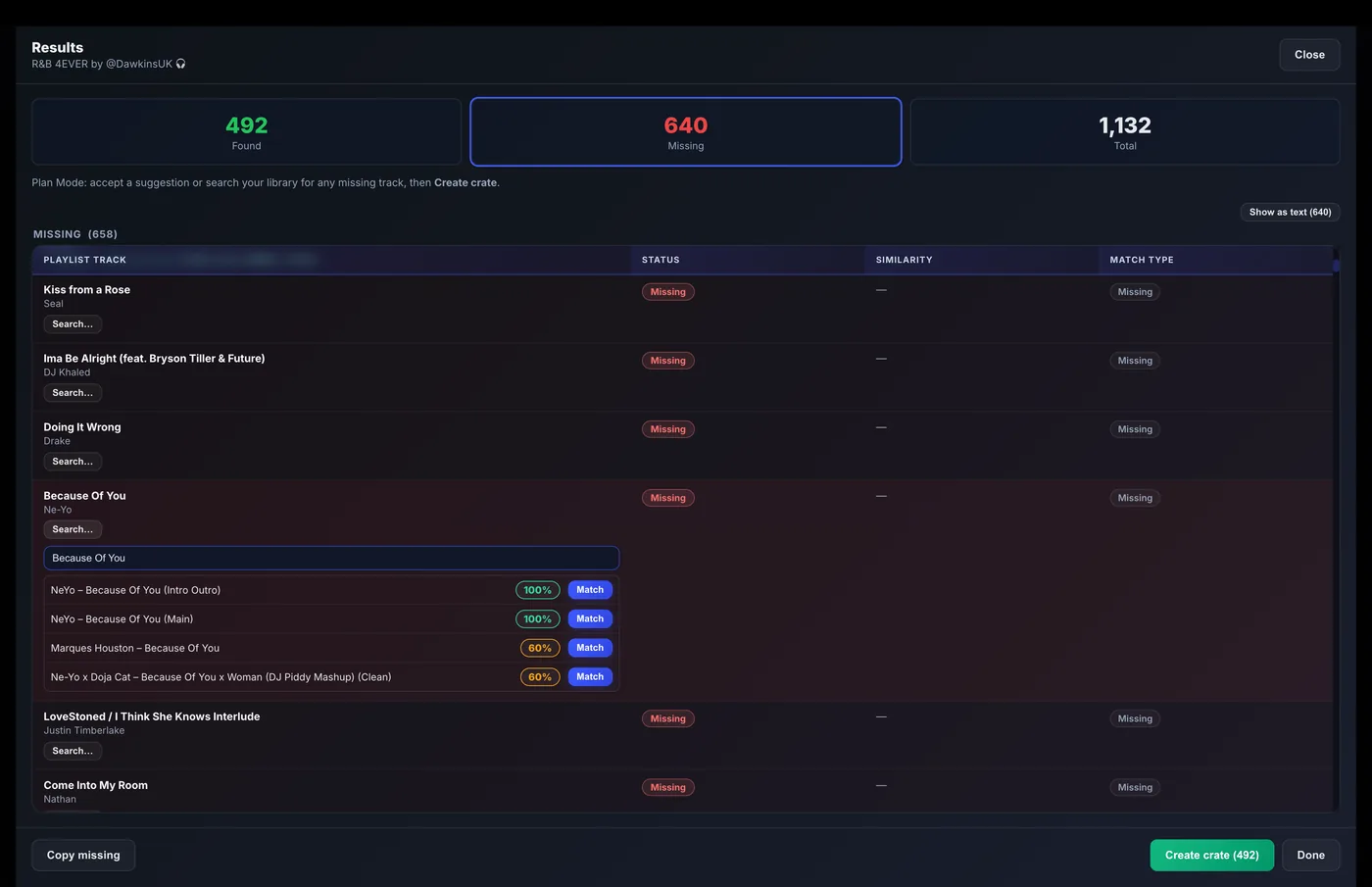
Give it the playlist — paste a Spotify or Apple Music link, import a file, or paste the list in as text. MLT goes through your Serato library and matches every song to the files you already own, then shows you three numbers: Found, Missing and Total. For the missing ones it even suggests matches you can accept, or lets you search your library yourself. Hit Create crate and it builds it in Serato from your own tracks, ready to play at the gig.

CrateMatch doesn't download any music. It matches what you've already got and shows you what's missing, so you know exactly what you still need to buy before the event.

MLT CrateMatch results — 492 found, 640 missing, 1,132 total, with suggested matches for the missing tracks.
10

CrateFind

Free

The problem. You've got a .crate file — from an old drive, a backup, or another DJ sent it to you. But when you load it, the tracks don't link up, because the actual music files live somewhere else on your computer. So the crate's useless.

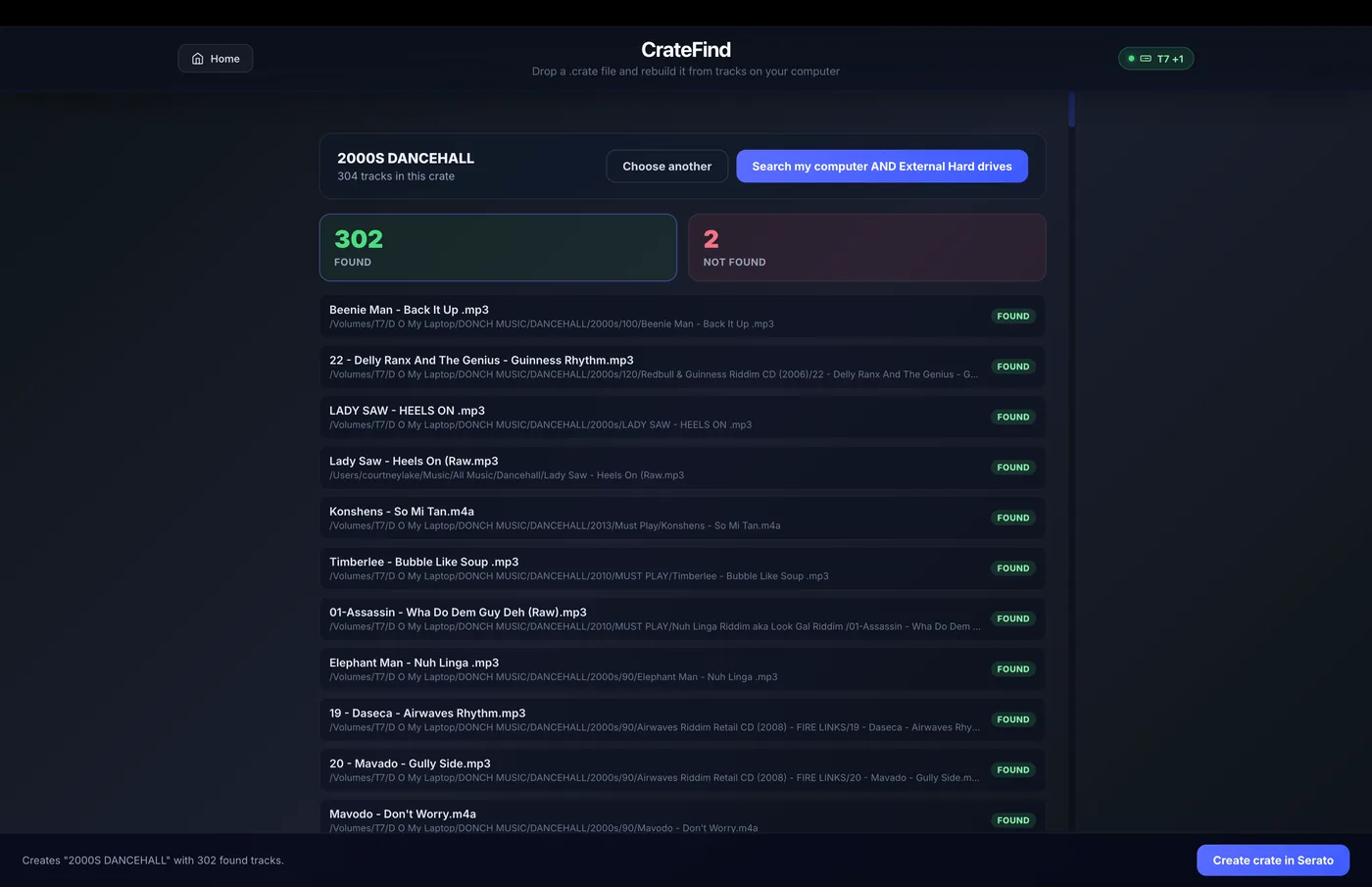
Drag the .crate file in and MLT reads the track list inside it, showing you how many tracks it's looking for. Hit "Search my computer" and it hunts down every one by filename — across your whole machine and any external drives you've got plugged in. It shows you what it found and what it couldn't, and if some tracks are on an external drive or scattered outside your main folder, it offers to copy or move them in so the crate always works, even when that drive's unplugged.

MLT CrateFind results — 302 tracks found and 2 not found after searching the computer and external drives.
11

Sync

Free to try

The problem. You keep your library beautifully organised in Serato. But when you want to play off a USB on club gear, that runs Rekordbox — and rebuilding all your crates and playlists over there by hand is a massive job.

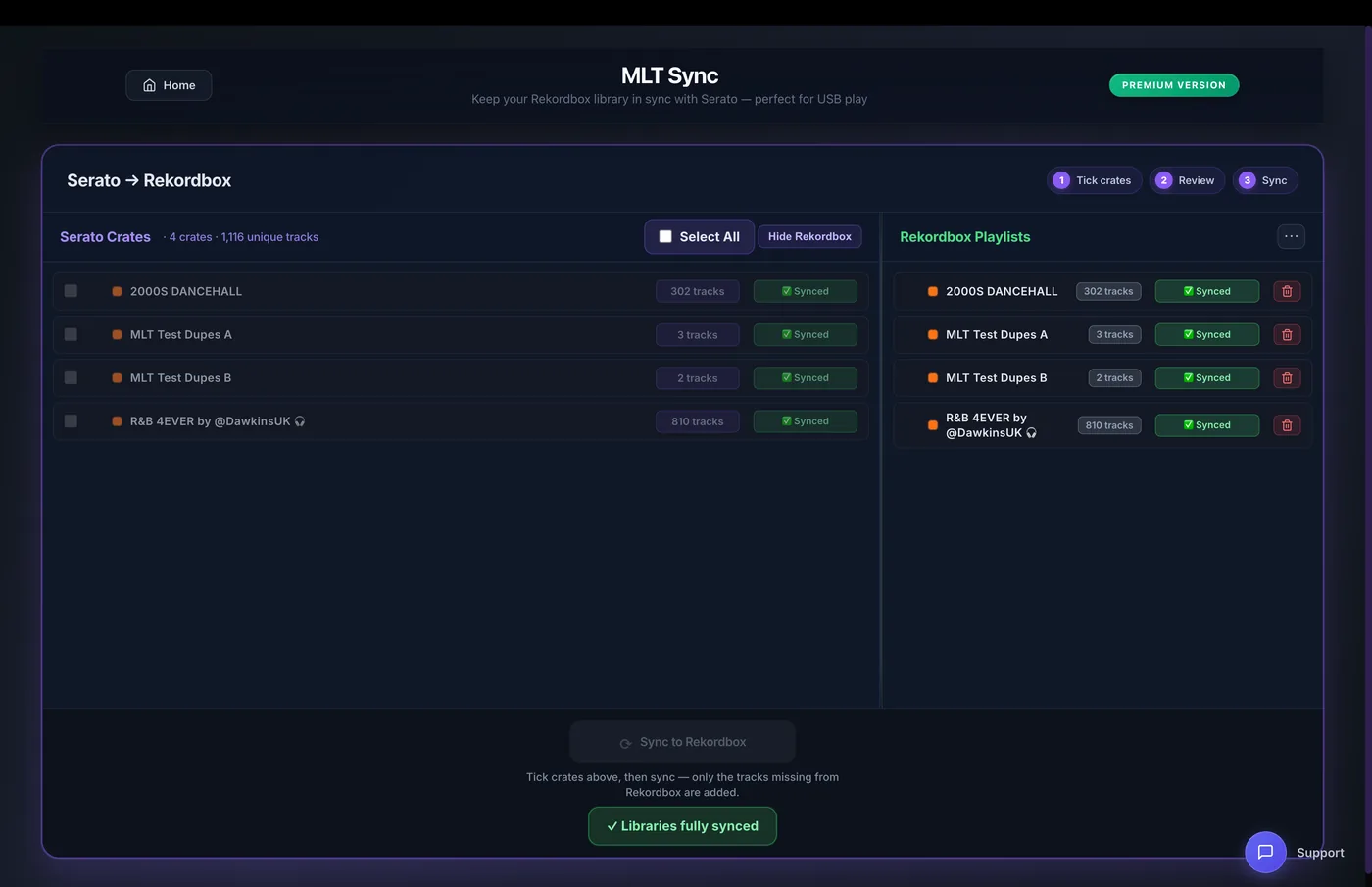
Sync loads both libraries side by side — your Serato crates on the left, your Rekordbox playlists on the right — and shows you which are already synced and which aren't. Tick the crates you want, or hit Select All, then Sync to Rekordbox. It closes Rekordbox so it can work cleanly, then adds every track from those crates — and it's smart, it only adds what's missing, so you're not duplicating anything. Your cue points come across too. Then export to USB and play the set you built in Serato on any club setup.

MLT Sync with Serato crates on the left and Rekordbox playlists on the right, all showing as fully synced.
12

Riddim

Pro

The problem. If you play dancehall you know the deal: loads of different songs are built over the same riddim. Mid-set you want to pull up every cut over a riddim instantly — but finding them all in your library, song by song, is a nightmare.

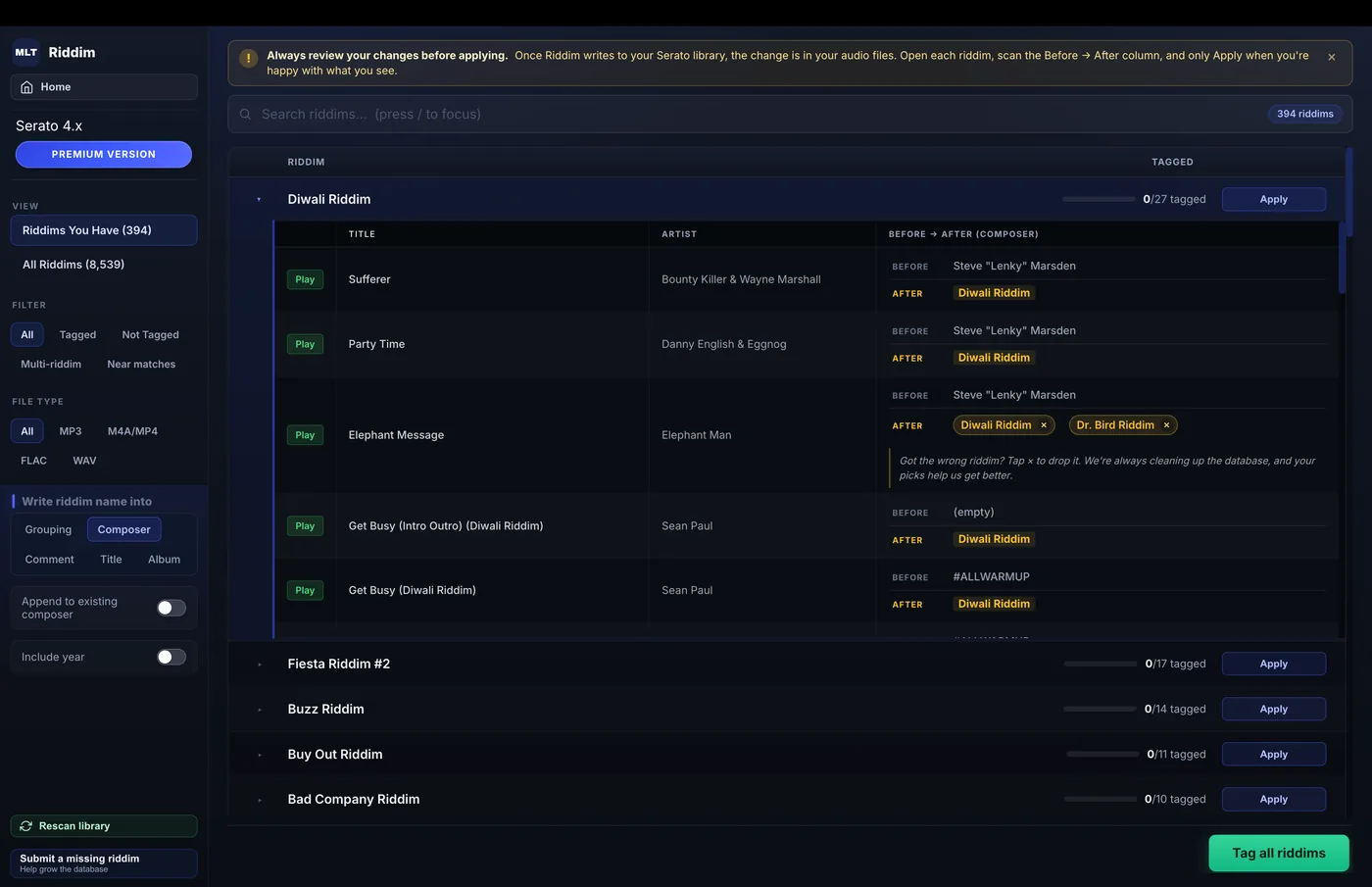
Riddim scans your library and finds every track that belongs to a known riddim, then lays them all out for you to review. Configure what you want: tag every track with its riddim name, build a crate for each riddim, or both. Pick which tag field it writes into (Grouping is the recommended one) and group everything under a parent crate like "MLT Dancehall". Preview every change before you commit, hit Apply to Serato, and you've got a crate for every riddim in your collection.

Riddim writes into your actual files — review your changes first, because it can't be undone from inside the app.

MLT Riddim grouping dancehall tracks under Diwali Riddim, showing the before and after tag for each track.
13

CrateView

Free

The problem. Over time your crate list in Serato gets massive. Old crates, one-off event crates, seasonal stuff — all cluttering up the sidebar. But deleting them feels risky and permanent, so you just live with the mess.

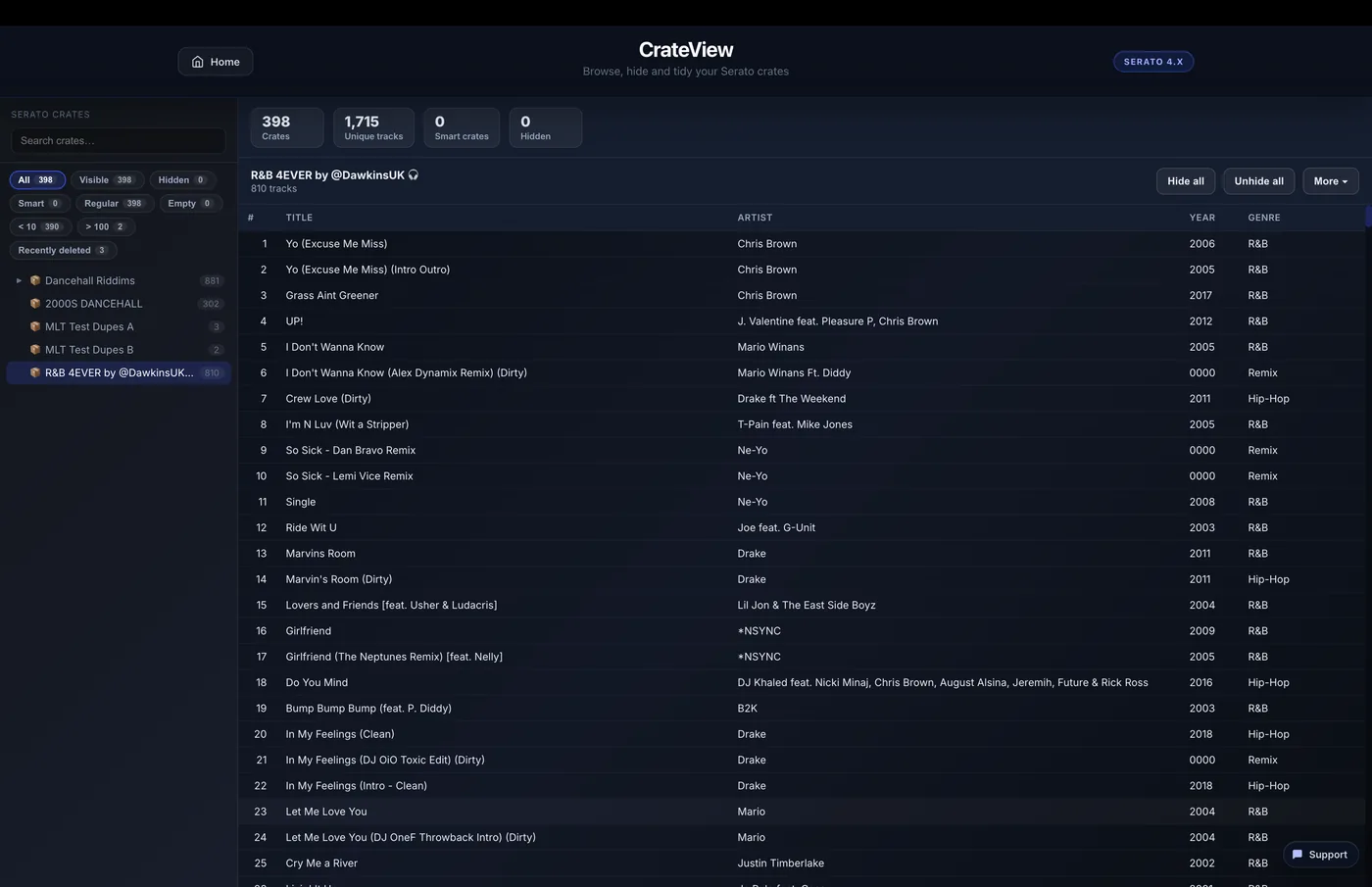
CrateView lets you hide them instead. See all your crates down the side, click any one to see the tracks inside, and use the quick filters up top — all, visible, hidden, smart, empty. Hover a crate and hit Hide: it disappears from your Serato sidebar, but nothing's deleted and your music files aren't touched at all. Unhide whenever you want, bulk-hide a whole load at once, and if you ever do delete a crate there's a Recently Deleted section with a Restore button.

MLT CrateView listing 398 crates and 1,715 unique tracks, with filters for visible, hidden, smart and empty crates.
14

Library Cleanup

Coming soon

The big one. Everything above fixes one part of your library. This does the whole lot in one go — it's the flagship. If you've got a messy library and you just want it sorted, this is it. On the home screen it's called "Organise My Library Automatically".

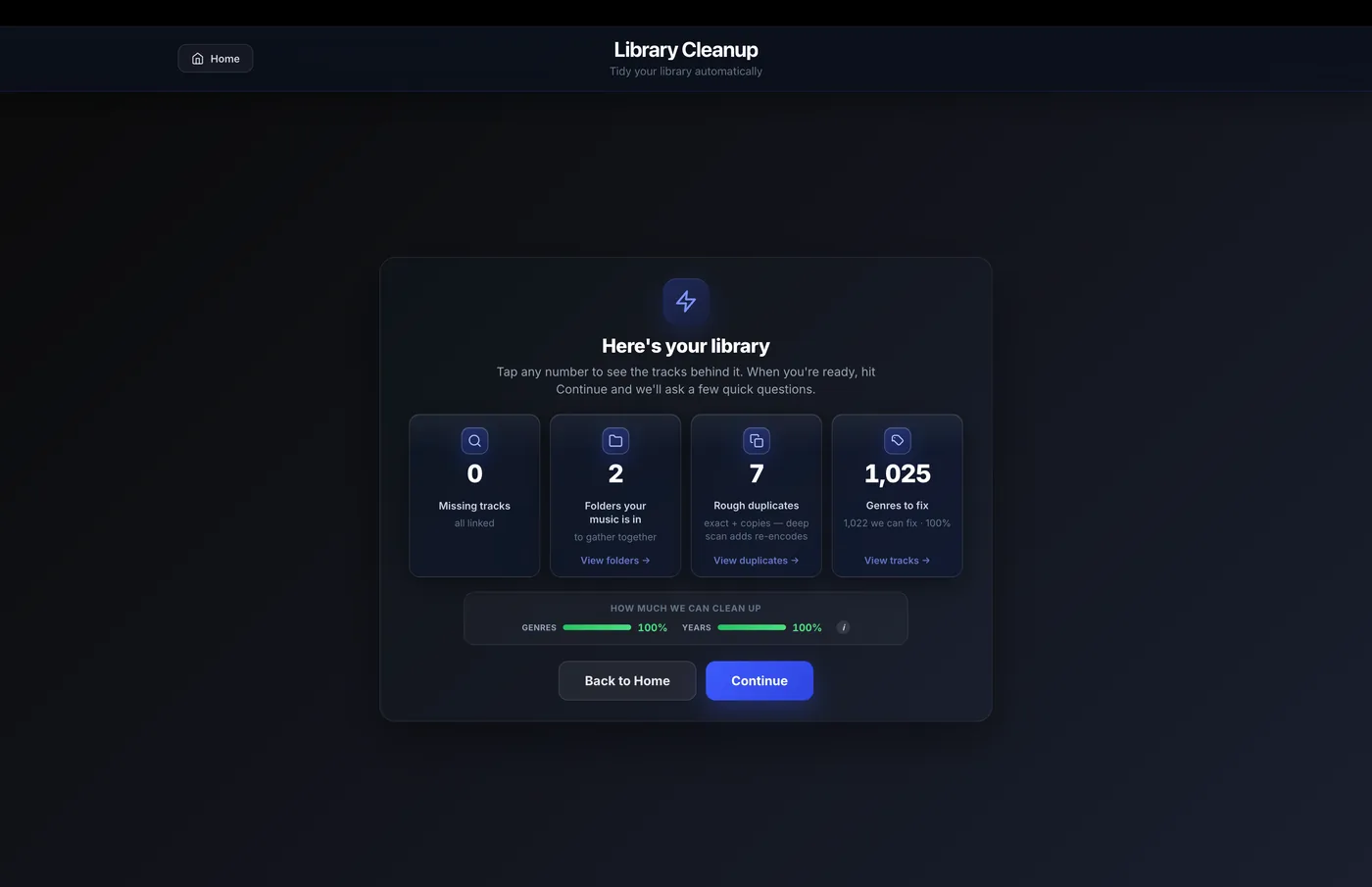
It starts with a free scan that shows exactly what needs fixing — how many missing tracks you've got, how scattered your folders are, how many rough duplicates, and how many genres need cleaning up. Then choose "Do it for me" and it runs every step automatically: relinks your missing tracks, gathers your files into one place, flags duplicates, fixes your genre tags and builds a smart crate for every genre. Or "Walk me through it" — a step-by-step guide through each tool yourself, using MLT's recommended settings. You see a full plan first, including a preview of exactly how your library will look in Serato and Finder afterwards. And if you don't like the result, there's an Undo that puts your tags, files and Serato library back exactly how they were.

Landing in a future beta — it's not in the build yet. The scan shown here is from an early version.

MLT Library Cleanup free scan — missing tracks, folders to gather, rough duplicates and genres to fix, each with a count.

Coming from Version 1?

What changed in 2.0

2.0 isn't just a new coat of paint. The whole suite got faster, safer and easier to use — and gained tools that simply didn't exist before. Your existing licence carries straight over.

New in 2.0

Works with the new Serato 4

Serato 4 changed the way it stores your library behind the scenes — moving from the old file-based system to a new database. MLT 2.0 understands both, so every tool keeps working whether you're on Serato 3 or the new Serato 4.

Improved

Smarter, more accurate tagging

Tags & Cues 3.0 reads tags straight from your files, fills in blanks, standardises genres and never overwrites a tag that's already correct — so your genres and years are finally trustworthy. It's the biggest jump of any tool this release.

Safer

Safer by design

2.0 protects your work: cleaner backups, restores that put tracks back exactly where they came from, and undo options — all while keeping your crates and cue points intact.

Redesigned

A cleaner, faster app

Every screen was rebuilt with a modern look, smoother motion and quicker load times — plus a built-in guided tour so new users know exactly what each tool does.

Release notes

What's in this build

A quick summary of the current beta. The full breakdown is in the tour above.

Version 2.0 beta Public Beta macOS & Windows

New

  • Serato 4 support — every tool now works with Serato 4's new library, as well as Serato 3
  • Welcome tour — in-app onboarding that explains every tool
  • App-wide redesign with a modern look and smoother motion
  • Add New Music — dedicated page with a review step before anything's committed
  • Library Cleanup (coming soon) — one-click guided cleanup with a free diagnostic scan

Improved

  • Tags & Cues 3.0 — Tags and Cues split into separate sections, now writes M4A/MP4, FLAC & WAV (not just MP3), reads tags from your files, smarter genre engine, never overwrites a valid tag, blank-artist fill
  • iTunes Migration — reads all playlists in one pass, clearer flow, revert option
  • Backup & Restore — option to keep your folder structure, restores tracks to their original locations
  • Find Duplicates — rebuilt interface with a resolution panel; audio recognition installs on demand
  • CrateMatch — new match, review, then create flow
  • Missing Tracks — faster scanning and extra search scopes

Fixed

  • Sync — external-drive libraries no longer show zero tracks per crate
  • Riddim — fixes for libraries stored on external drives
  • Various stability and reliability improvements across the suite

Known in this beta

  • Back up first — always back up your music library before running any tool on a beta build
  • It's a beta — if something looks off, please let us know so we can fix it before the full release
macOS & Windows beta · Available now

Get the 2.0 beta

Free to download. Your existing licence and tools carry straight over — and your feedback helps shape the final release.

This is beta software. Please back up your music library before using MLT 2.0 beta — use the Backup tool or keep your own copy first. Betas can have bugs, and we don't want you to lose anything.

Not sure which Mac you have? Click the Apple menu → About This Mac. If it says "Apple M1/M2/M3/M4/M5" you're on Apple Silicon; if it says "Intel" pick the Intel build.

The 2.0 beta runs on Mac & Windows desktops — not phones. Pop your email in and we'll send the download links, ready for when you're back at your computer.

We'll email you the beta download links

Get the macOS & Windows beta links sent to your inbox, ready for when you're back at your desktop.